A short demonstration on using the Raspberry Pi and HSMM Mesh with Asterisk. I have a pc and an IP phone setup to talk via the Raspberry Pi PBX. The Laptop (PC) is actually connected wirelessly to another Mesh node in a different location.
HSMM Mesh - Raspberry Pi
HSMM Mesh - Raspberry Pi
A short demonstration on using the Raspberry Pi and HSMM Mesh with Asterisk. I have a pc and an IP phone setup to talk via the Raspberry Pi PBX. The Laptop (PC) is actually connected wirelessly to another Mesh node in a different location.
A short demonstration on using the Raspberry Pi and HSMM Mesh with Asterisk. I have a pc and an IP phone setup to talk via the Raspberry Pi PBX. The Laptop (PC) is actually connected wirelessly to another Mesh node in a different location.

Ham Mesh Networking - Linksys WRT54G with Broadband Hamnet (HSMM-MESH)
Ham Mesh Networking - Linksys WRT54G with Broadband Hamnet (HSMM-MESH)
A little bit of Ham Mesh Networking, using the Linksys WRT54G router, and Broadband-Hamnet (HSMM-MESH) -- and some comparisons of this with AREDN, the emergency radio data network effort which runs on Ubiquiti. A little bit on how this all works, what mesh networking is, the kinds of things you can experiment with the WRT54G (and versions), how it compares with its offshoot, AREDN and Ubiquiti gear, and more. You can get more info on Broadband Hamnet at (www.broadband-hamnet.org) and AREDN (www.aredn.org) at their websites. Both are great projects-Broadband Hamnet really for the great experimentation platform (those Linksys WRT54G's are only $5-15 each!), where AREDN is more aimed at serious infrastructure (off the shelf, commercial Ubuiqiti gear and outdoor installations, etc.).
link here :: https://mesh.cf
A little bit of Ham Mesh Networking, using the Linksys WRT54G router, and Broadband-Hamnet (HSMM-MESH) -- and some comparisons of this with AREDN, the emergency radio data network effort which runs on Ubiquiti. A little bit on how this all works, what mesh networking is, the kinds of things you can experiment with the WRT54G (and versions), how it compares with its offshoot, AREDN and Ubiquiti gear, and more. You can get more info on Broadband Hamnet at (www.broadband-hamnet.org) and AREDN (www.aredn.org) at their websites. Both are great projects-Broadband Hamnet really for the great experimentation platform (those Linksys WRT54G's are only $5-15 each!), where AREDN is more aimed at serious infrastructure (off the shelf, commercial Ubuiqiti gear and outdoor installations, etc.).
link here :: https://mesh.cf
Connecting standard Wifi computers to HSMM-MESH
Connecting standard Wifi computers to HSMM-MESH
OK, so you have a WRT54G configured and running as a mesh node. Great!
Now you want to be able to get on the mesh network, but do not want a cable connection.
A Mesh node can ONLY be a mesh node, not an access point, so what to do?
Get a second router, install the HSMM-MESH firmware, go into the setup, setup your callsign etc just like on the node router.
But now, go and set the Type to be a Mesh Access Point instead of a Mesh Node. Connect a jumper of any length between any LAN port of the Mesh Access Point and any LAN port of the the Mesh Node. Save settings and reboot the device.
You will notice that the SSID of the Mesh Access Point has changed, and when your laptop does a scan, it will see both the HSMM-MES™ network AND your callsign-xxx. Connect to the one using your callsign and you will be on the HSMM-MES™ network.
To configure the Mesh Access Point (MAP) after it has been saved and rebooted as a MAP, you can no longer use http://localnode anymore, as that will now direct you to the Mesh Node instead. You would need to point your browser to http://172.27.0.2 , since 172.27.0.1 is localnode.
OK, so you have a WRT54G configured and running as a mesh node. Great!
Now you want to be able to get on the mesh network, but do not want a cable connection.
A Mesh node can ONLY be a mesh node, not an access point, so what to do?
Get a second router, install the HSMM-MESH firmware, go into the setup, setup your callsign etc just like on the node router.
But now, go and set the Type to be a Mesh Access Point instead of a Mesh Node. Connect a jumper of any length between any LAN port of the Mesh Access Point and any LAN port of the the Mesh Node. Save settings and reboot the device.
You will notice that the SSID of the Mesh Access Point has changed, and when your laptop does a scan, it will see both the HSMM-MES™ network AND your callsign-xxx. Connect to the one using your callsign and you will be on the HSMM-MES™ network.
To configure the Mesh Access Point (MAP) after it has been saved and rebooted as a MAP, you can no longer use http://localnode anymore, as that will now direct you to the Mesh Node instead. You would need to point your browser to http://172.27.0.2 , since 172.27.0.1 is localnode.
HSMM-Mesh Guide to Getting Started
Getting started with HSMM-Mesh (High Speed Multimedia-Mesh), also known as Broadband Hamnet™, can be daunting to hams that have the interest, but lack the expertise of network engineers. Indeed, perusing comments and documents on the Web can be confusing to newcomers who want to participate in setting up Amateur Radio broadband mesh networks under FCC Rules in Part 97.
This document will help you get started and up-and-running so you can see how a basic 2.4 GHz ham radio mesh network works. The notes that follow assume you’re using a PC running the Microsoft Windows operating system.
Select a Router
For starters, you’ll need a commercial off-the-shelf Cisco Linksys WiFi router (it operates under FCC Part 15 unlicensed rules).
The Broadband Hamnet Web site (http://www.broadband-hamnet.org/) has a list of suitable routers. Some hams print out this list and search for surplus Linksys routers at Goodwill and Salvation Army stores and garage sales, but you can also purchase a suitable Linux-based version of a Cisco Linksys router. You can get it brand spanking new from Amazon.
At the time of this writing the desirable Cisco Linksys WRT54-GL model can be had, brand new in the box, for less than $50, including shipping. My suggestion is to obtain at least two identical routers so you can communicate between them and verify the results of your work.
This document will help you get started and up-and-running so you can see how a basic 2.4 GHz ham radio mesh network works. The notes that follow assume you’re using a PC running the Microsoft Windows operating system.
Select a Router
For starters, you’ll need a commercial off-the-shelf Cisco Linksys WiFi router (it operates under FCC Part 15 unlicensed rules).
The Broadband Hamnet Web site (http://www.broadband-hamnet.org/) has a list of suitable routers. Some hams print out this list and search for surplus Linksys routers at Goodwill and Salvation Army stores and garage sales, but you can also purchase a suitable Linux-based version of a Cisco Linksys router. You can get it brand spanking new from Amazon.
At the time of this writing the desirable Cisco Linksys WRT54-GL model can be had, brand new in the box, for less than $50, including shipping. My suggestion is to obtain at least two identical routers so you can communicate between them and verify the results of your work.
Intro to AREDN MESH Firmware at HamCom 2016
Intro to AREDN MESH Firmware at HamCom 2016
Intro to the AREDN MESH Firmware at HamCom 2016. Really cool new firmware for MESH networking, which includes channels for ham-only use.
Intro to the AREDN MESH Firmware at HamCom 2016. Really cool new firmware for MESH networking, which includes channels for ham-only use.
Oakville Amateur Radio presentation on HSMM MESH Networking
At last night’s excellent meeting of the Oakville Amateur Radio Club,
very-well received presentation on HSMM MESH
Networking
Here’s a link to his slides
And we’re not talking theory here. Thanks to John, VA3BL our technical director and his team the Oakville Club’s MESH link went on the air earlier this week.
So what is HSMM MESH (and forgive me if I get this wrong)?
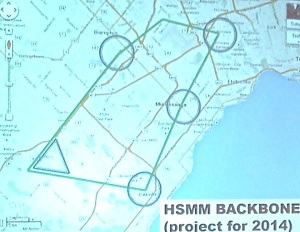
HSMM stands for high-speed multi-media. Found on the Amateur micro-wave frequencies that parallel commercial WiFi channels, it allows licensed Amateur Radio operators to create their own private, high power (we’re talking milliwatts to maybe a Watt or two), flexible, resilient, ad hoc Internet.
Here’s a link to his slides
And we’re not talking theory here. Thanks to John, VA3BL our technical director and his team the Oakville Club’s MESH link went on the air earlier this week.
So what is HSMM MESH (and forgive me if I get this wrong)?

HSMM stands for high-speed multi-media. Found on the Amateur micro-wave frequencies that parallel commercial WiFi channels, it allows licensed Amateur Radio operators to create their own private, high power (we’re talking milliwatts to maybe a Watt or two), flexible, resilient, ad hoc Internet.
Operating a SharkRF Openspot over a MESH Network
Operating a SharkRF Openspot over a MESH Network
Operating a SharkRF Openspot over a MESH Network:
Today Darryl, K5DLQ, and I connect our MESH nodes together over an internet tunnel (this simulates a true over-the-air MESH network connection that isn’t possible due to the distance that Darryl and I are from each other) and connect our SharkRF Openspot devices together, then perform a short QSO.
The SharkRF Openspot has been one of the most popular DV hotspots, allowing connection into the DMR, DSTAR and YSF networks. Today Darryl and I setup the SharkRF Server/Client option in the Openspot menu, then we use our DMR radios to communicate through each of our Openspot units (his being a server, and mine being a client which connects to his IP on the MESH network).
This can be a great tool for using MESH networking to allow connection of non-MESH devices onto the network.
Operating a SharkRF Openspot over a MESH Network:
Today Darryl, K5DLQ, and I connect our MESH nodes together over an internet tunnel (this simulates a true over-the-air MESH network connection that isn’t possible due to the distance that Darryl and I are from each other) and connect our SharkRF Openspot devices together, then perform a short QSO.
The SharkRF Openspot has been one of the most popular DV hotspots, allowing connection into the DMR, DSTAR and YSF networks. Today Darryl and I setup the SharkRF Server/Client option in the Openspot menu, then we use our DMR radios to communicate through each of our Openspot units (his being a server, and mine being a client which connects to his IP on the MESH network).
This can be a great tool for using MESH networking to allow connection of non-MESH devices onto the network.
Can I restore my router to its factory state?
Yes you can. If you are sufficiently skilled you can use the tftp method described elsewhere to install any .bin firmware image at any time.
If you are not comfortable with the tftp method you can install the original firmware from the node Administration page. Connect your node's LAN port to your laptop and its WAN port to your home network. On your laptop send your browser to http://localnode/ Click the Setup button, enter your username (root) and your password, then click the Administration link at the top. Click the Refresh button next to the Download Firmware list. Then in that list select Linksys-WRT54G or Linksys-WRT54GL depending on the model of router you have, then click Download. The Linksys firmware will be downloaded and installed.
If you are not comfortable with the tftp method you can install the original firmware from the node Administration page. Connect your node's LAN port to your laptop and its WAN port to your home network. On your laptop send your browser to http://localnode/ Click the Setup button, enter your username (root) and your password, then click the Administration link at the top. Click the Refresh button next to the Download Firmware list. Then in that list select Linksys-WRT54G or Linksys-WRT54GL depending on the model of router you have, then click Download. The Linksys firmware will be downloaded and installed.
HSMM-Mesh with Raspberry Pi setup
HSMM-Mesh with Raspberry Pi.
I followed the directions from http://kb9mwr.blogspot.com/2013/08/hsmm-mesh-on-raspberry-pi.html to install HSMM-Mesh on my Raspberry Pi.
It appears to work but I can't see either of my other two nodes on Linksys Routers.
On my main Linksys the setings are as follows:
Node Name: W4RS-01
Type: Mesh Node
WIFI
Proto: static
IP: 10.197.235.151
Mask: 255.0.0.0
SSID: BroadbandHamnet-v1
Adhoc
1
I followed the directions from http://kb9mwr.blogspot.com/2013/08/hsmm-mesh-on-raspberry-pi.html to install HSMM-Mesh on my Raspberry Pi.
It appears to work but I can't see either of my other two nodes on Linksys Routers.
On my main Linksys the setings are as follows:
Node Name: W4RS-01
Type: Mesh Node
WIFI
Proto: static
IP: 10.197.235.151
Mask: 255.0.0.0
SSID: BroadbandHamnet-v1
Adhoc
1
Toronto Mesh
Toronto Mesh
Based in Toronto, we are a grassroots and decentralized group of volunteers who started Toronto Mesh at CivicTechTO in early 2016. Through building community-owned infrastructure using off-the-shelf hardware and open-source technology, we are hoping to address barriers to internet access in our city. There are many ways that people can be involved.
Based in Toronto, we are a grassroots and decentralized group of volunteers who started Toronto Mesh at CivicTechTO in early 2016. Through building community-owned infrastructure using off-the-shelf hardware and open-source technology, we are hoping to address barriers to internet access in our city. There are many ways that people can be involved.
Lost the password HSMM MESH Node (Solved)
I just tried this as well. Same results. I can SSH in but I have to supply the root login and my node's password every time. I would like to be able to SSH into the node without knowing the password.
I'm not familiar with linux and just starting out with BBHN and networking in general. Any SSH tips?
I'm not familiar with linux and just starting out with BBHN and networking in general. Any SSH tips?
Subscribe to:
Comments (Atom)